
Removing a Team Member
Overview
As the Owner of a Textr Team workspace, you can remove team members who no longer need access. Only Owners can remove members. Team Members cannot remove other members or themselves.
Remove a Single Member
- Go to Settings > Team Members
- Find the member you want to remove in the list
- Click the three-dot icon next to their name and select Delete
- Click Delete to confirm the deletion when prompted
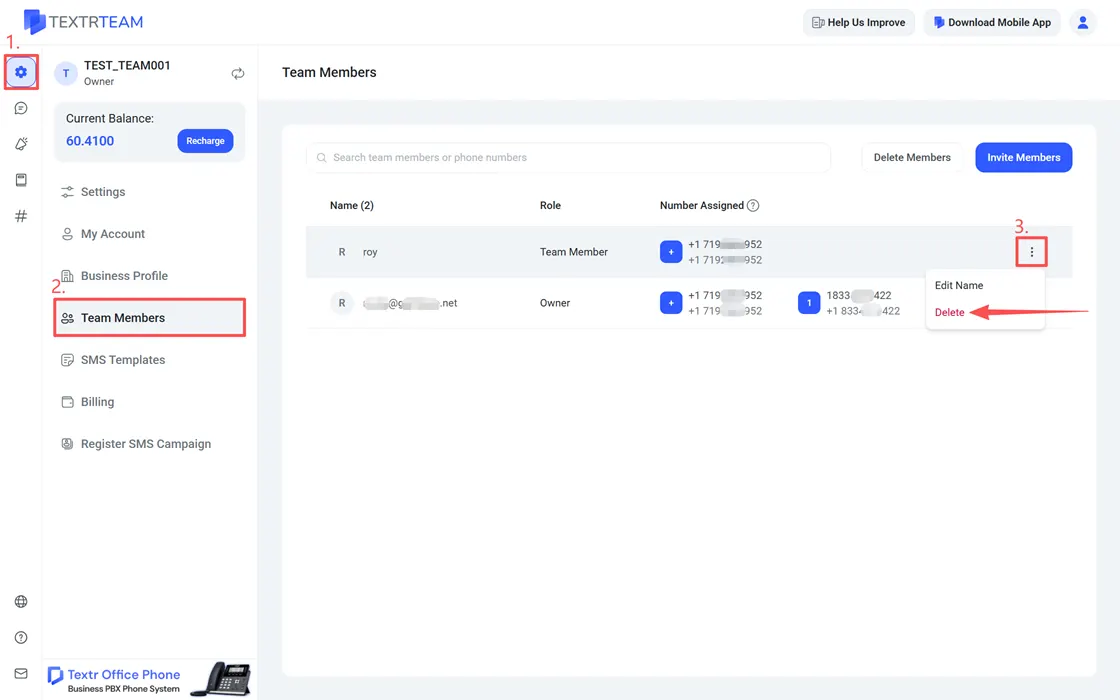
The member loses access immediately after confirmation.
Remove Multiple Members at Once
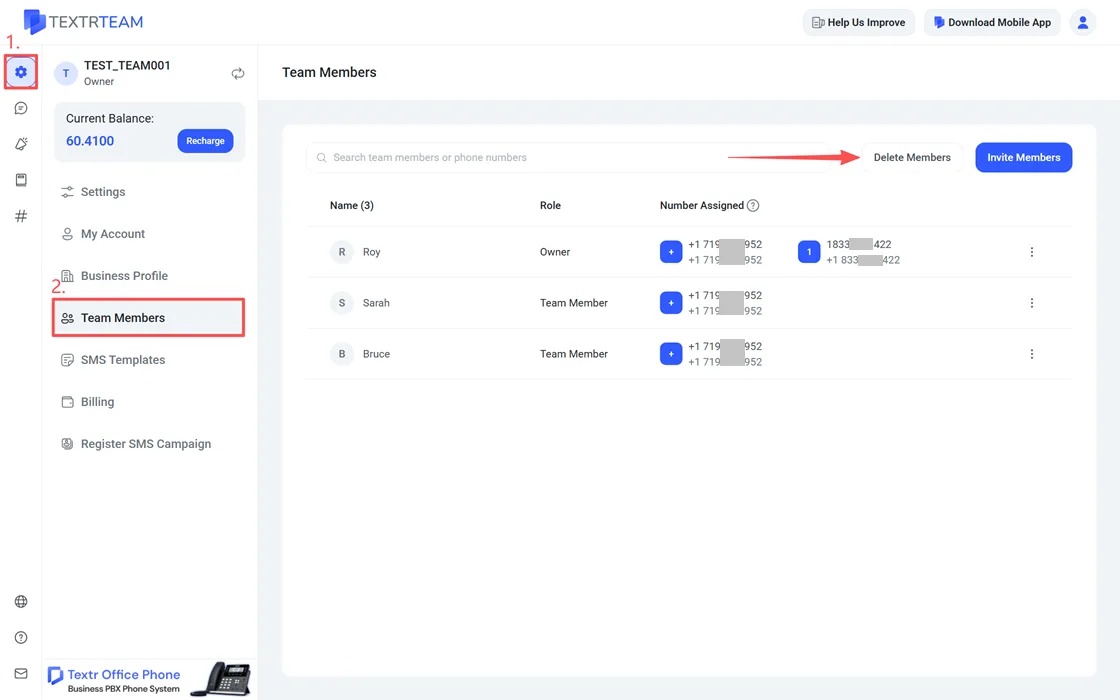
- Go to Settings > Team Members
- Click the three-dot icon at the top right corner and select Delete Members
- Click Select All to select all members, or manually check the boxes next to specific members
- Click Delete/Cancel above the member list
- Click Delete to confirm the deletion when prompted
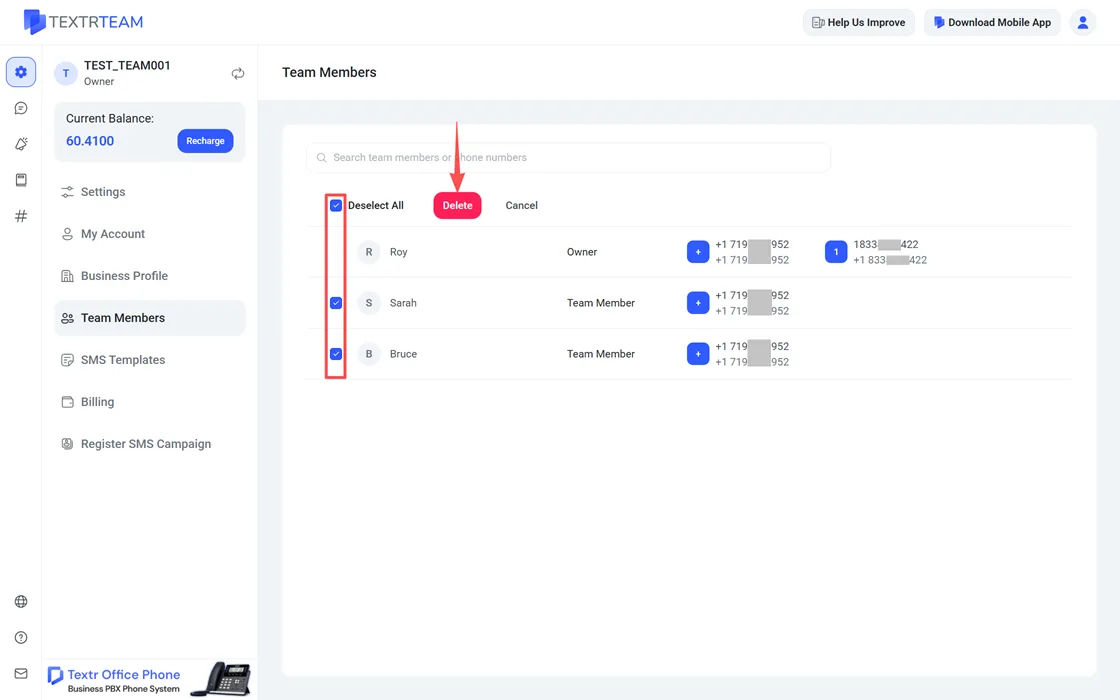
Note: Selecting all members includes yourself as the Owner. Make sure to uncheck your own account before confirming if you do not intend to delete it.
What Happens After Removal
- Access: The removed member loses access to the workspace immediately
- Phone numbers: Removing a member frees up their assigned seats, making them available for reassignment to other team members.
- Conversation history: All conversation history tied to the removed member remains in the workspace and is accessible to Owners
- Contacts: Shared contacts are not affected. They remain available to all remaining members
- SMS templates: Templates created by the removed member remain in the workspace
Note: If you accidentally remove a member, you can re-invite them using the same email address. They will rejoin as a new Team Member with no previous assignments.